How to Save a Course
Saving a Course for Later
To save any course you like but don't have time to start now, you can use the Save Course feature.
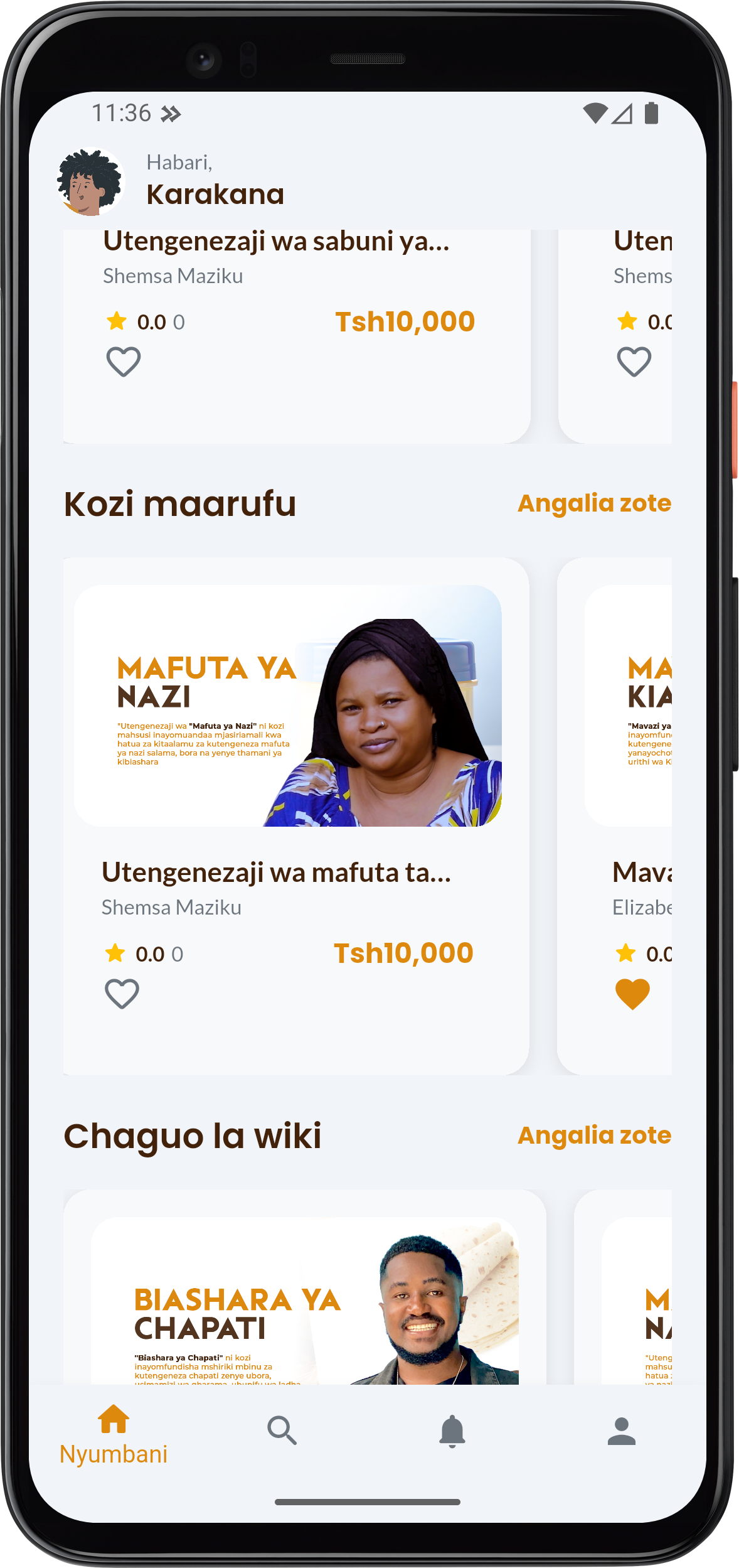
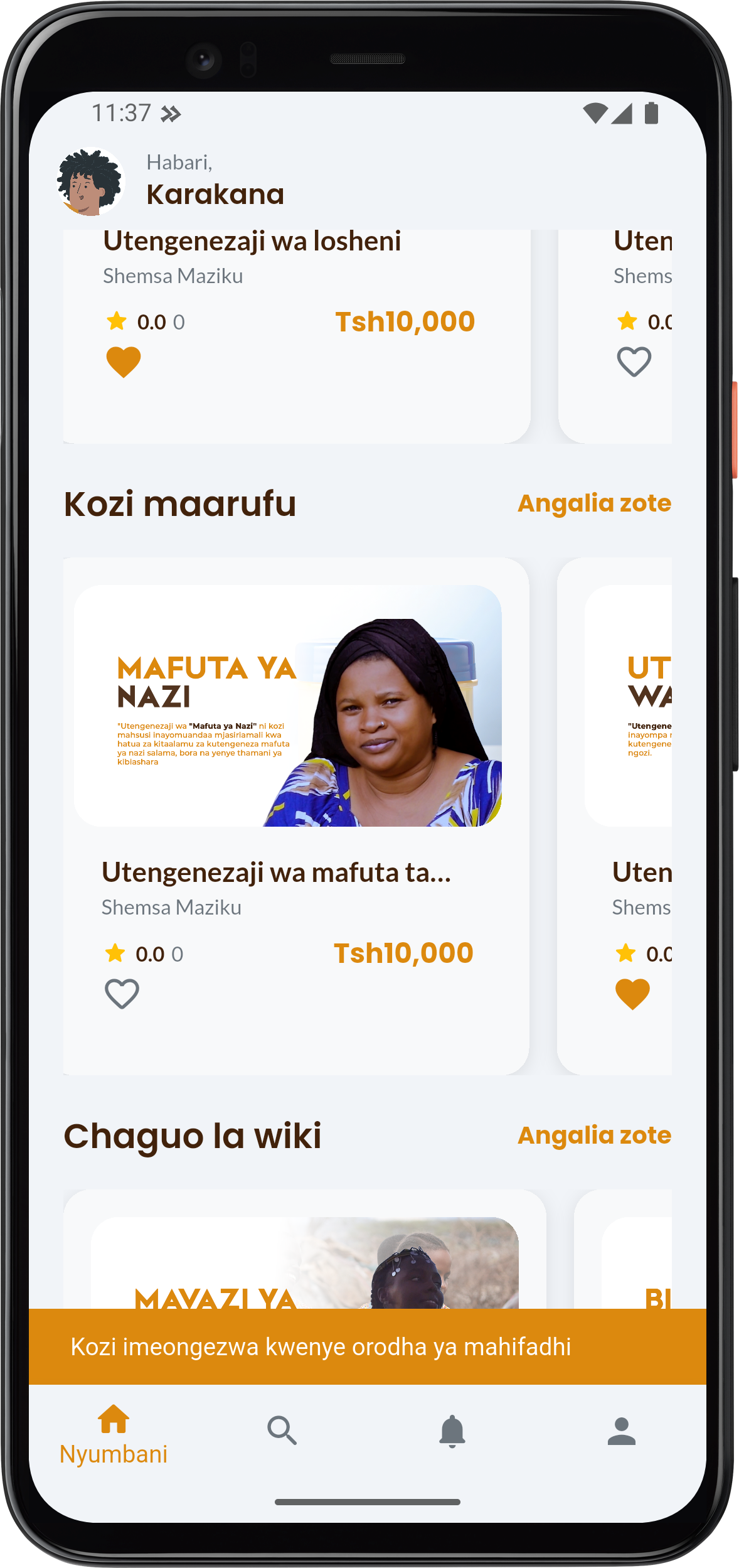
Step 1: Saving the Course
- Find the course you want to save on the Home (Nyumbani) page or on any course list.
- Click the heart icon () located near the course price or the instructor's name.
- Once you click the heart, it will change color (to orange) and you will see a confirmation message: "Kozi imeongezwa kwenye orodha ya mahifadhi" (Course has been added to the saved list).
info
You can remove a course from the saved list by clicking the heart icon again.
Step 2: Accessing Saved Courses
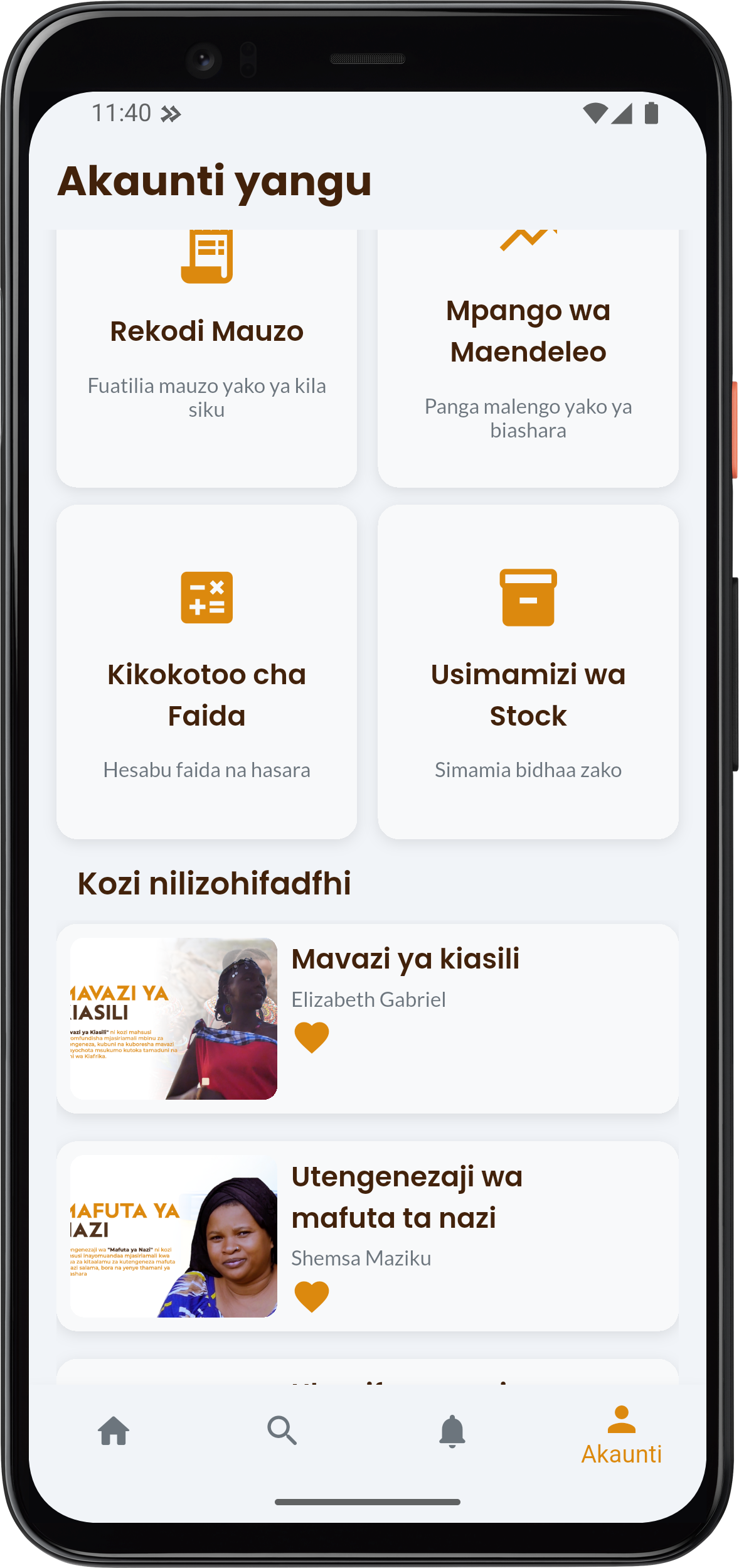
All courses you have saved are easily accessible on your Account page:
- Tap the Account (Akaunti) button located at the bottom right of the app.
- Scroll down to the Saved Courses (Kozi nilizohifadhi) section.
- Here you will see the full list of all courses you have saved. You can open them and start learning directly from this list.